 Sort Feed
DocsSorting
After you sort
A finished sort leaves a banner across the top of the page. It's the control panel for everything you do next, and it stays with you as you scroll.
Reading the banner
The headline names exactly what you're looking at, such as 25 Posts from 1 Week Back. The line above it counts what's currently on screen, which drops as soon as you filter.
On a multi-creator surface such as Saved or a TikTok collection, the headline names the collection instead of a creator.
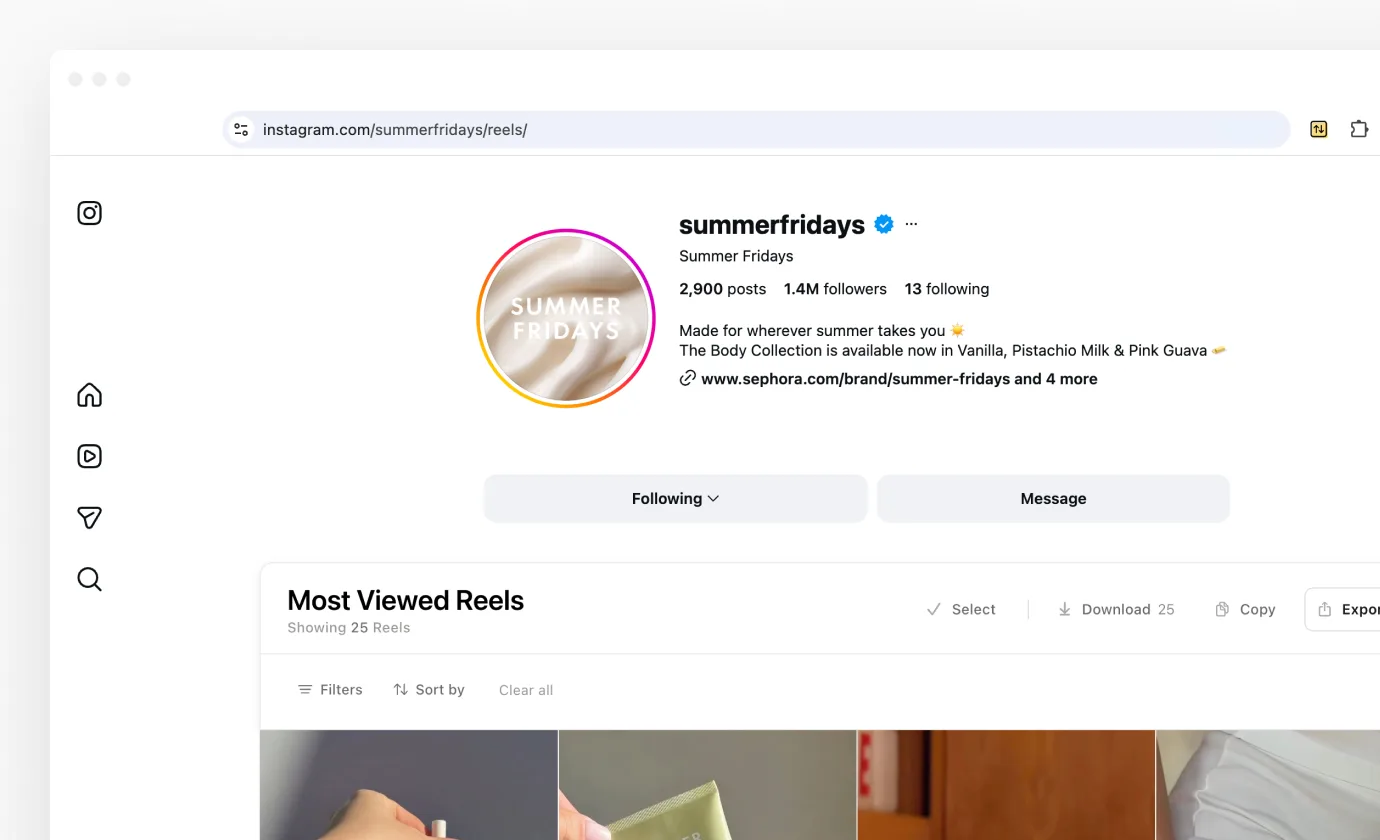
Sort by
The Sort by chip re-ranks the grid you already have. Switching from Views to Comments is instant: the posts and their numbers were collected once, and the chip only changes their order.
It offers the same metrics the extension does for that platform, so nothing new has to be learned. Use it freely: it costs nothing, and looking at the same 200 posts by four different measures is most of the research.
Filters
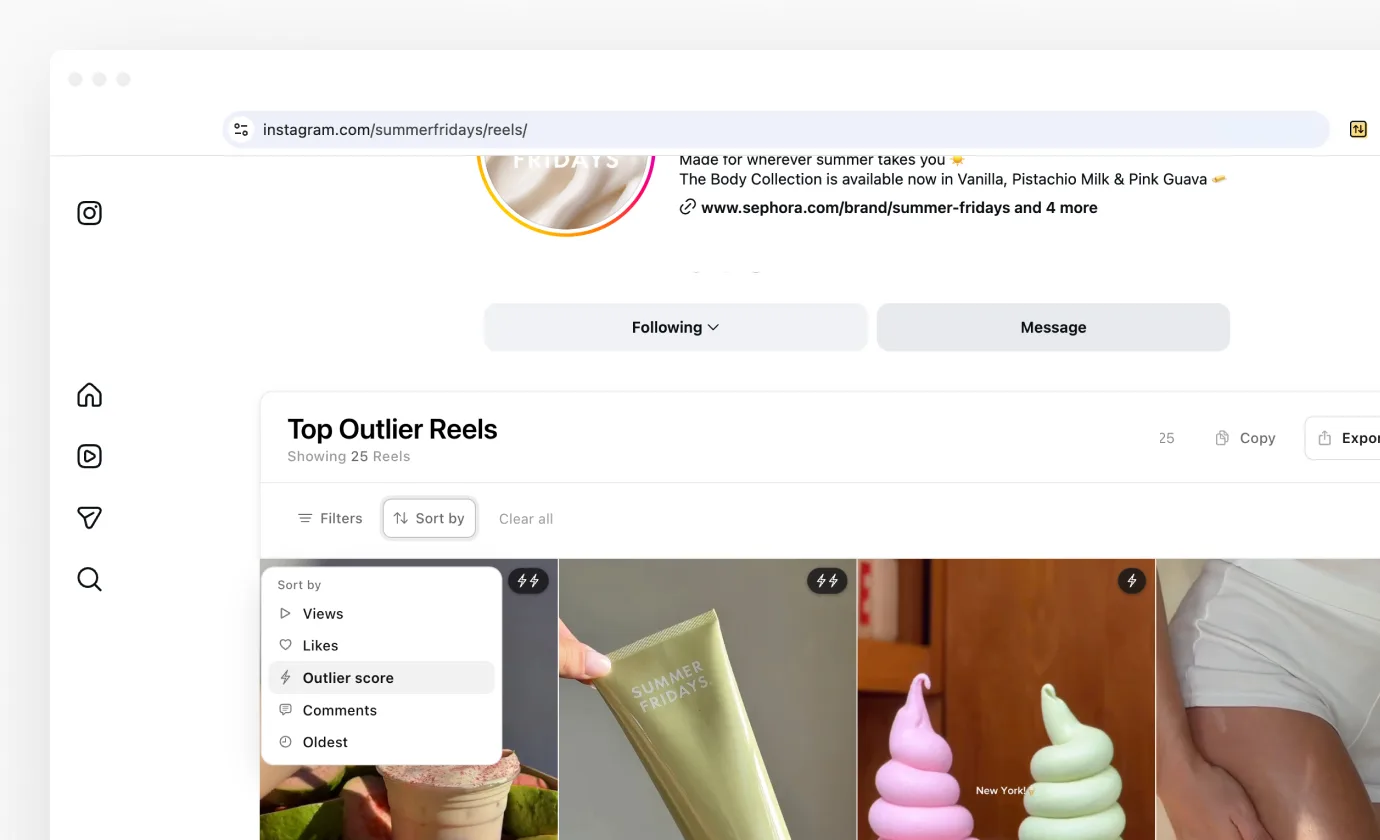
Filters narrows the grid without starting over. It opens a panel with two groups, and the button at the bottom tells you how many posts survive before you commit.
Performance range
Pick the metric, then set a Min and a Max. A histogram above the fields shows how the posts are distributed, so you can see where the bulk of them sit before you cut.
This is the tool for questions like "show me only the reels over 100,000 views", which is a different question from "show me the top ten".
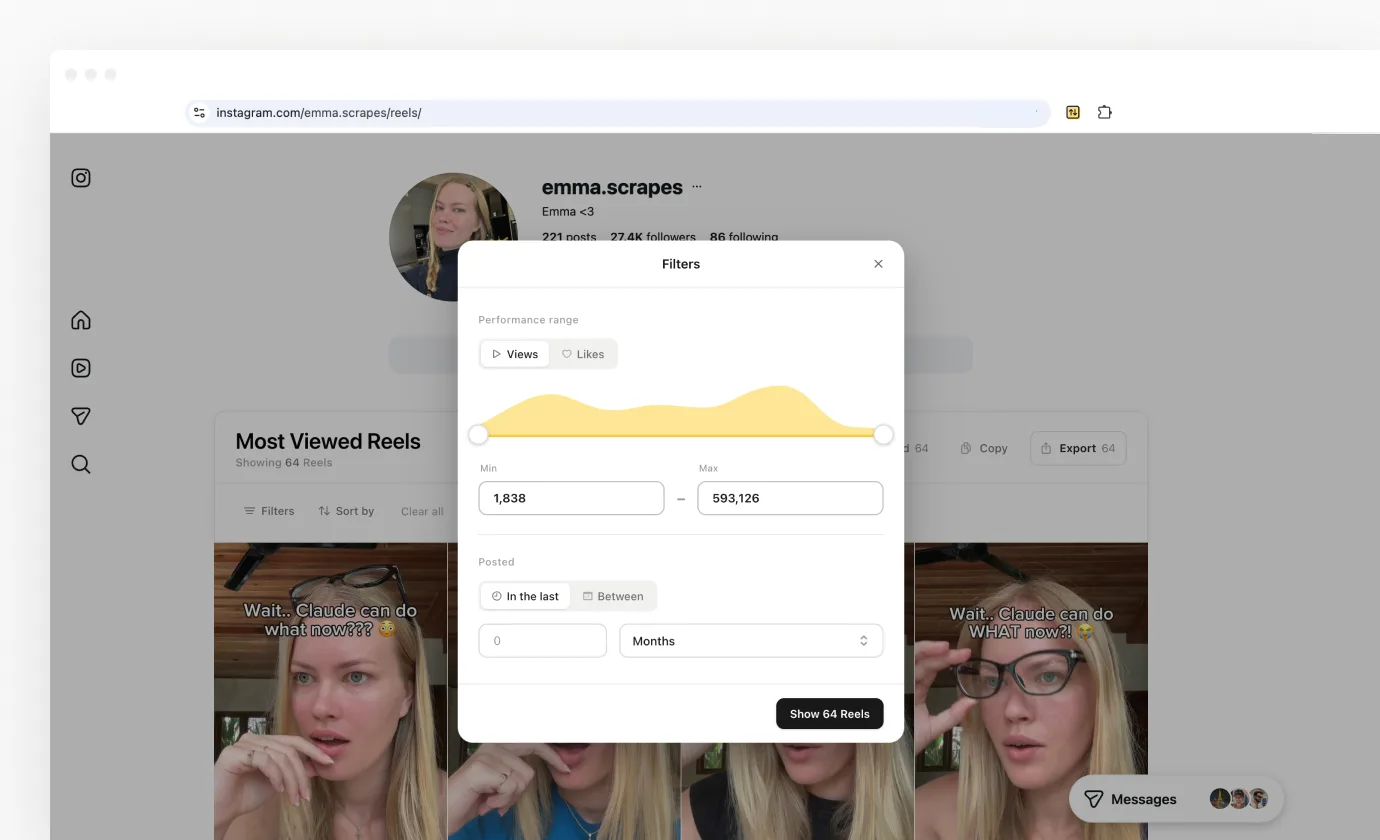
Posted
Either In the last, with a number and a unit of days, weeks, months or years, or Between, with a start and end date from the calendar.
This filters what you already collected. It doesn't go back and fetch more, so it can only narrow the range you originally sorted.
Clearing filters
Clear all resets both groups and returns the full grid. The Filters button carries a dot while anything is active, so you can tell at a glance whether you're looking at everything.
The cards
Each card keeps its own number in the corner so you can compare them without hovering: views on video, likes on photos. Hovering brings up the full set of counts for that post.
On an outlier sort the corner number becomes the multiple, such as 6.1×, and the strongest posts pick up a small lightning badge. Outlier score explains how those are chosen.
On Instagram, TikTok and Facebook, clicking a card opens it in the player rather than sending you away from the grid. On YouTube it opens the video in a new tab.
On Instagram each card also carries a Save button above Download and Transcribe, so the posts worth keeping can be kept as you go. Saving covers it.
The action row
The right side of the banner reads Select, then Download, Copy and Export. On an Instagram profile, Similar leads the row. Download and Export each carry a live count of what's currently in the grid, so they always tell you how much you're about to get.
- Similar lists accounts like the one you sorted, so you know which profile to sort next. Instagram profiles only for now, and it needs Pro. Similar accounts covers it.
- Copy puts the sorted list on your clipboard as rows and columns. Paste into Sheets or Excel and it lands as a proper table.
- Export opens a menu of Google Sheets, Excel, CSV and JSON. Exporting your data covers the columns.
- Download saves every clip in the grid, without a watermark, on Instagram, TikTok and Facebook. Downloading media covers what you get.
Similar accounts
On an Instagram profile's Reels or Posts, Similar opens a panel of up to 50 accounts Instagram relates to the one you sorted, in Instagram's own order. A card opens that profile in a background tab, and Export saves the list.
It's the quickest way from one account to a niche, and it's Instagram only for now. Similar accounts has the details, including who gets it.
Select mode
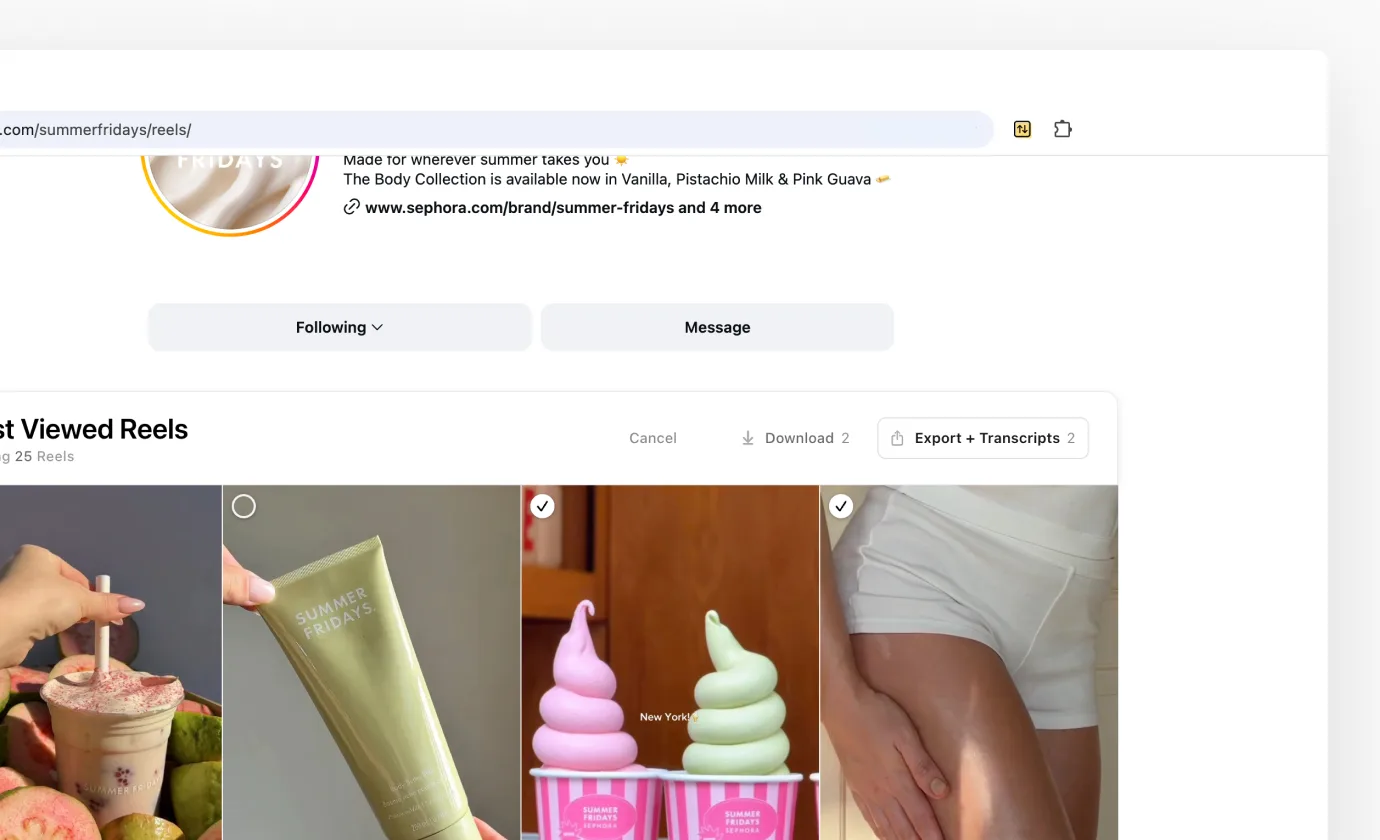
Click Select and a circle appears on every card. Tick the ones you want and the action row changes: Cancel leads, and the buttons now apply to your selection rather than to the whole grid.
This is the right tool when you want six references, not sixty. Selection order is kept, so the export comes back in the order you picked, not in the order the grid happened to be in.
- Download saves only the selected clips. YouTube has no download, so Select there is an export.
- Export + Transcripts runs transcription across the selection and puts the text in the file alongside the numbers. That needs Pro.
- Cancel leaves Select mode and puts the normal row back. Nothing is lost.
Next
Most people go from here to Google Sheets, which creates the spreadsheet for you rather than handing you a file to import.