 Sort Feed
DocsSorting
How sorting works
Every sort is three choices: how much of the profile to look at, whether to measure that in posts or in time, and how to rank what comes back. This page covers all three.
What a sort actually does
Sort Feed asks the page for posts the way scrolling would, reads the numbers attached to each one, and lays them back out in the order you asked for. It works with what the platform gives your account, so a private profile you can't see stays invisible.
Nothing is sent anywhere and nothing on the platform changes. Refreshing the page puts the original feed back.
Posts or Date
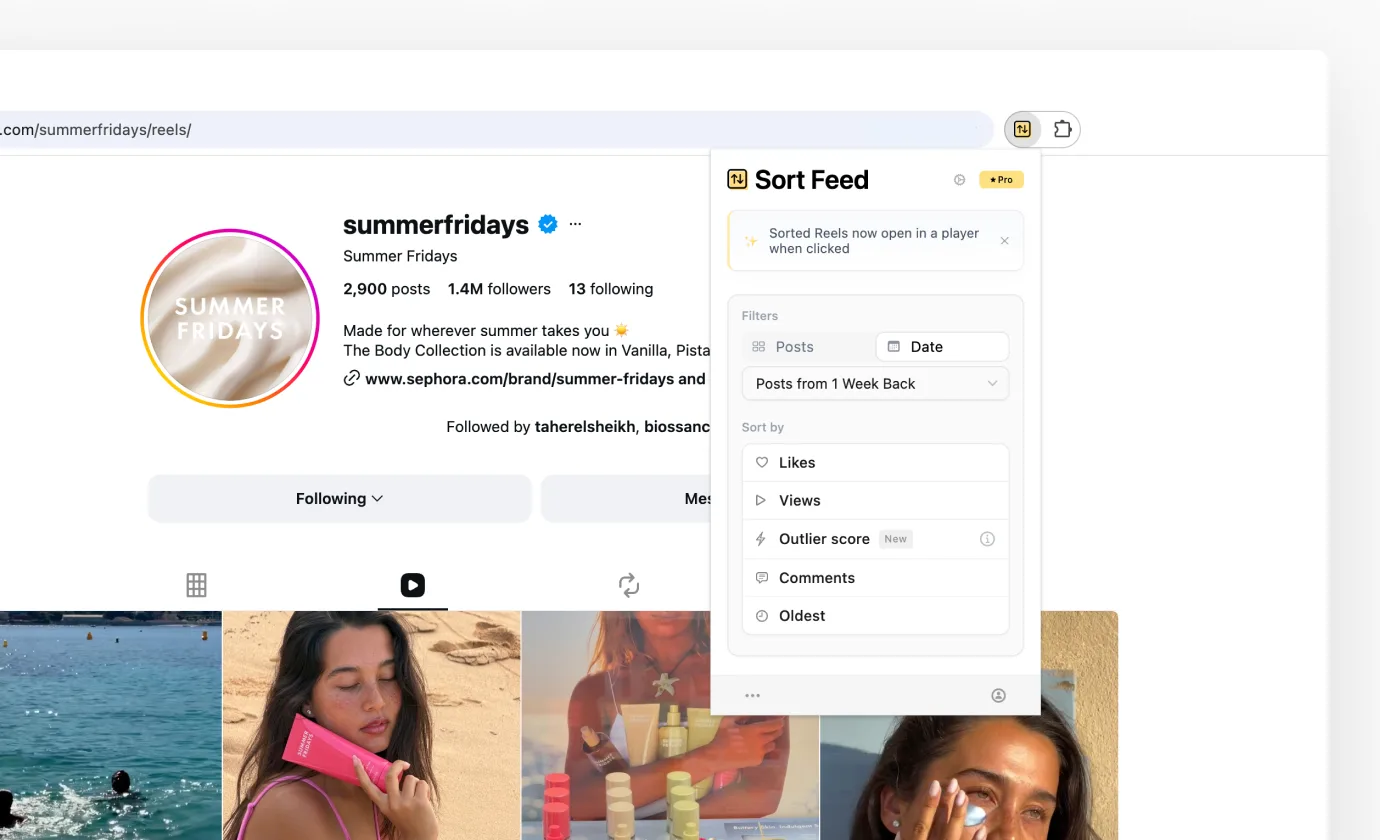
Filters, at the top of the panel, has two tabs. Posts sorts a number of recent posts. Date sorts everything published inside a stretch of time. Only one is active at a time, and the one you last used is the one the panel opens on.
Use Posts when you want a fixed amount of work: 25 posts finishes in seconds regardless of how often the creator publishes. Use Date when the question is about a period, such as everything since a format started.
Post counts
The free plan sorts the latest 25. Pro adds 50, 100, 200, 1,000 and All, plus Custom for an exact number.
All is the whole profile, and on a large account that means a long collection. The Stop button on the banner ends it early and sorts what has arrived so far.
Date ranges
The free plan covers one week back. Pro adds one month, three months, six months, one year and All, plus Custom for an exact start and end date.
A date sort has no way to know how many posts it will find until it gets there, so the progress bar measures how far back in time it has reached rather than counting toward a target.
Not everywhere
Date filters need a chronological feed, which search results and saved lists are not. They're blocked on Instagram Search and Saved, on TikTok Search, Favorites, Liked and collections, and on Facebook saved and your own reels. What works where has the full list.
How to rank it
Sort by is the second half of the panel. Which options appear depends on the platform, since each one publishes a different set of counts.
- Views, the ranking most research starts with.
- Likes, a read on how much people liked the idea rather than how far it travelled.
- Comments, for the posts that got an argument going.
- Shares, on TikTok and Facebook. A share is somebody putting their own name to it.
- Saves, on TikTok. Somebody planned to come back to this one.
- Outlier score, which measures each post against that creator's own median instead of against other creators.
- Oldest, for finding where a format started.
While it runs
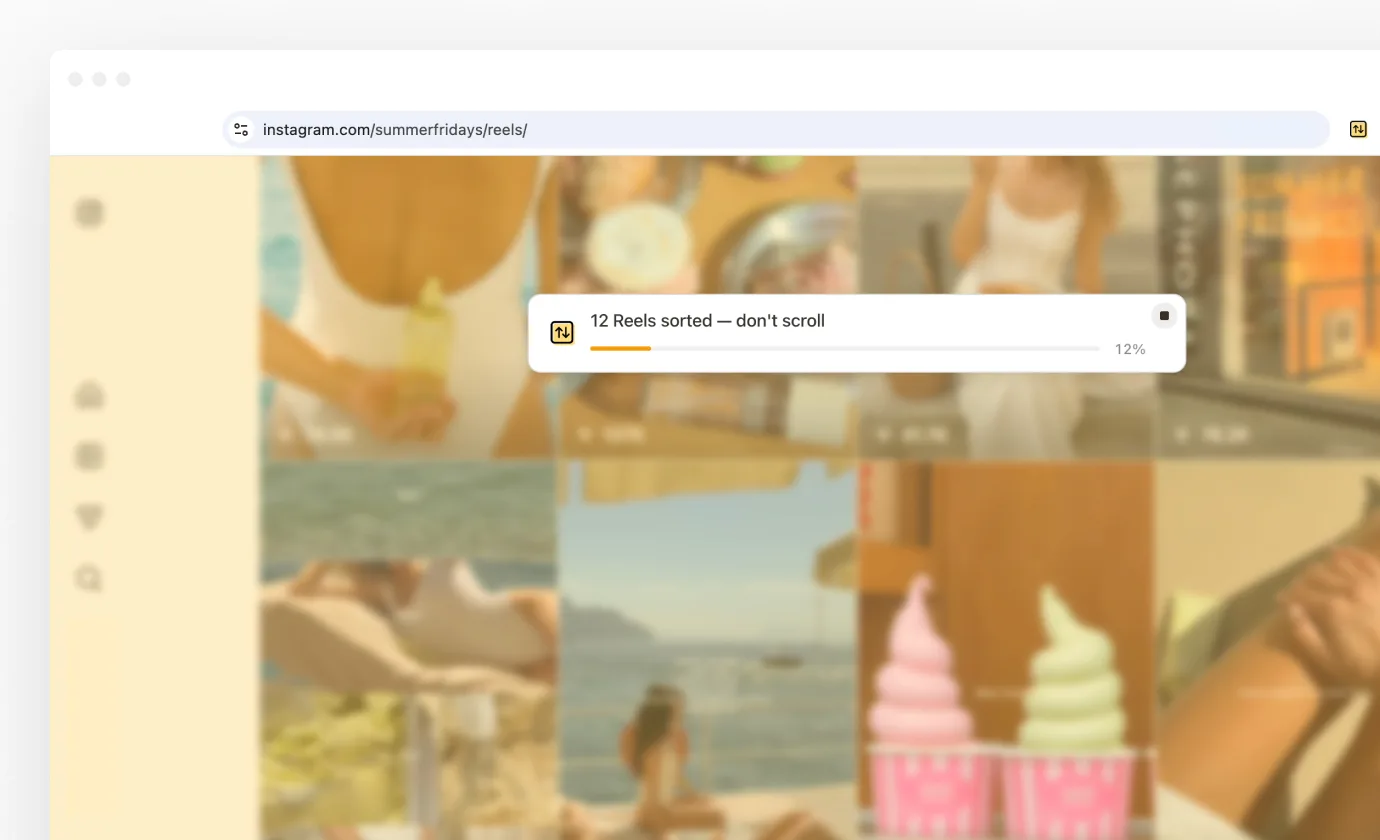
The panel closes, the page dims, and a banner slides in. It shows a running count and a progress bar, and the round button on its right stops the sort and ranks whatever has been collected.
The banner asks you not to scroll while it works, and it means it. Sort Feed is driving the page itself to load more posts, so scrolling at the same time works against it.
Stopping is instant, and what you get is a real sort of a smaller set rather than a half-drawn page. On a big profile it's often the right move: the top of a 1,000 post sort rarely changes after the first few hundred.
Changing your mind
Once a grid is on screen you rarely need to run the whole thing again. The Sort by chip on the banner re-ranks what's already there, instantly, because the posts have already been collected. After you sort covers it.
Sorting again from the extension is also fine. If the new request is a subset of what's already collected, the grid re-shuffles in place instead of starting over. If it asks for more, the sort runs again properly.
Sorting the next profile
On Instagram, a sorted profile also suggests where to go next. Similar accounts on the banner lists up to 50 accounts Instagram relates to the one you sorted, each a click from its own sort. It works on Instagram profiles only for now.
Getting back to normal
Refresh the page. That's the whole undo. Next, After you sort walks through every control on the banner it leaves behind.