 Sort Feed
DocsGetting started
Your first sort
Pick a creator, rank their profile by views, and read the result. Start to finish, it takes about a minute.
Start with a profile
Open a creator in your niche on Instagram, someone whose posts you can normally see. If Sort Feed isn't in your toolbar yet, Install Sort Feed comes first.
Sort Feed sorts the tab you're actually on, so if you want reels, click the Reels tab before you start. Everything below works the same way on TikTok, Facebook and YouTube, and only the wording changes: TikToks instead of Posts, Videos on YouTube. What works where has the differences.
Run the sort
1. Open Sort Feed
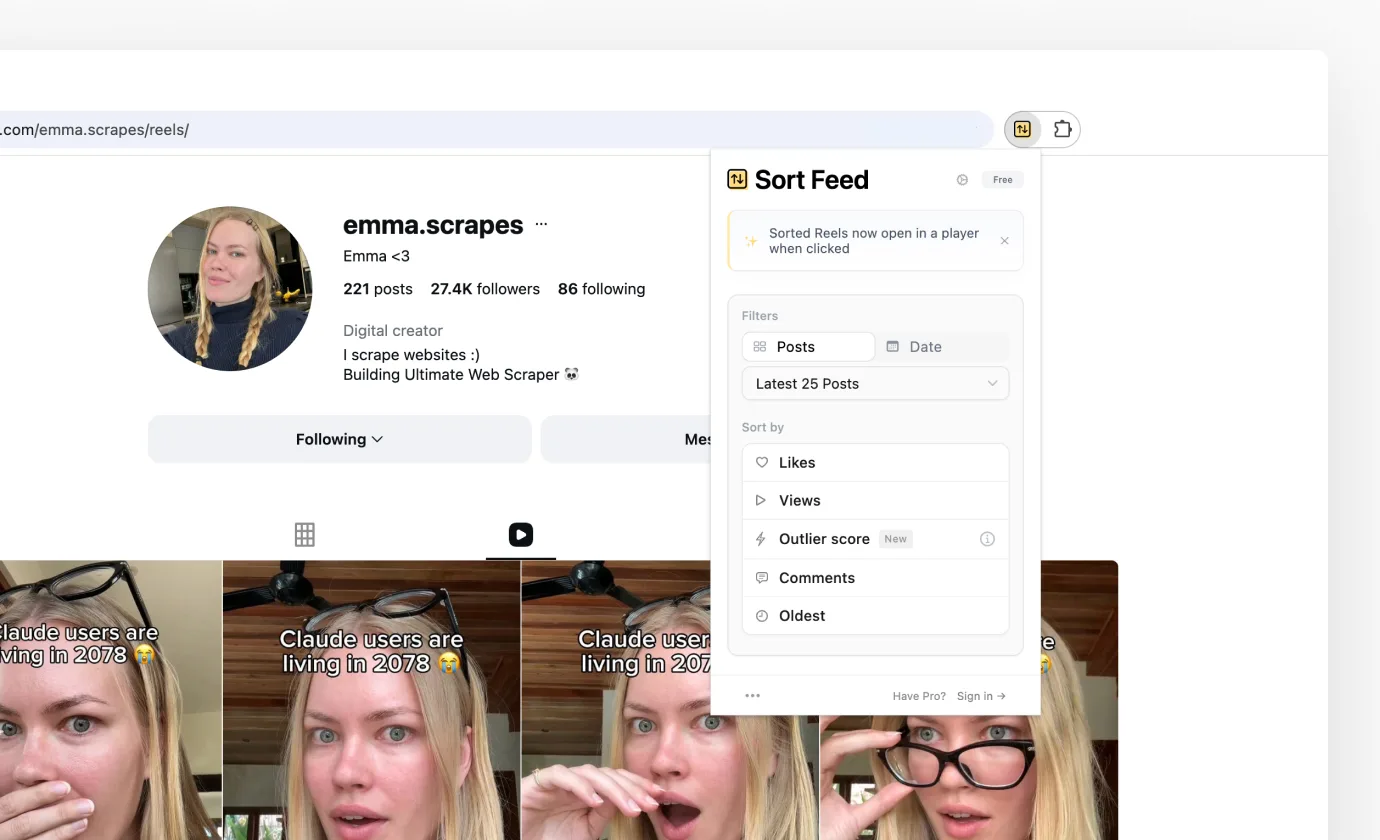
Click the Sort Feed icon in your toolbar. The panel opens with Filters at the top and Sort by underneath: how much to look at, then how to rank it.
2. Choose how much to sort
Filters has two tabs. Posts sorts a number of recent posts, and Date sorts everything published in a stretch of time. Pick one and choose from the dropdown below it.
On the free plan that's the latest 25 posts, or one week back. Pro opens up 50, 100, 200, 1,000 and All, plus a Custom option for an exact number or an exact date range.
Start small. Twenty-five posts is enough to see how a creator's numbers behave, and it finishes in seconds.
3. Pick a metric
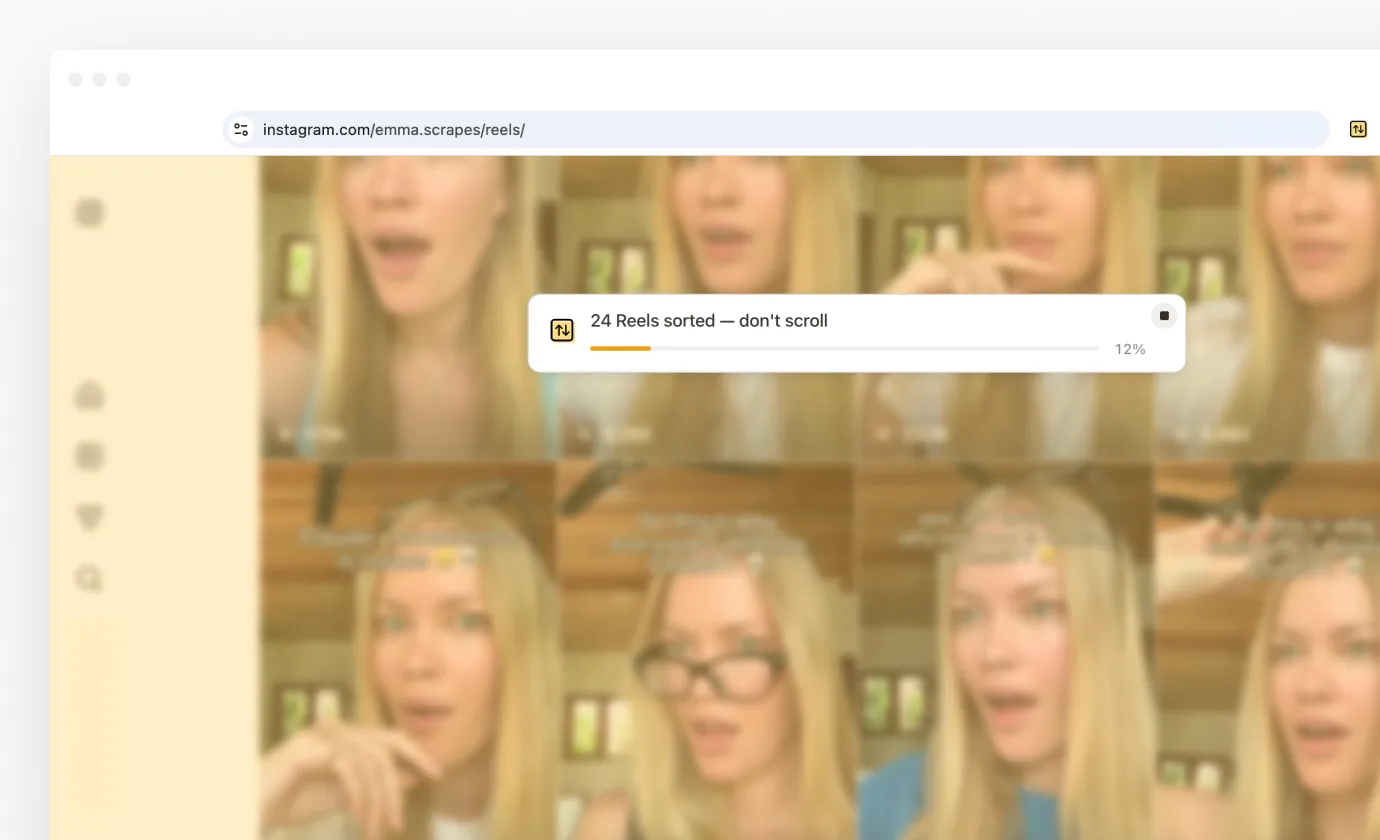
Click Views. The panel closes, the page dims, and a banner slides in showing how many posts have been collected so far.
Collecting takes a few seconds for 25 posts and longer for larger ranges, since Sort Feed has to load the posts before it can rank them. The button on the right of that banner stops early and sorts whatever it has, which is useful when you only wanted the top of a long profile.
4. Read the grid
The feed comes back in order, highest first. It's the same posts in the same grid, rearranged. Nothing on the creator's profile has changed, and nobody but you sees this.
What's on the sorted page
The banner across the top is the control panel for the sorted feed, and it stays with you while you scroll. After you sort goes through every control on it.
- The headline says exactly what you're looking at: "25 Posts from 1 Week Back".
- Sort by re-ranks what's already on screen. Switching from Views to Comments is instant, because the posts have already been collected.
- Filters narrows the grid by performance or by date, without starting over.
- Each card carries its own number in the corner, views on reels and likes on posts, so you can compare cards at a glance. Hover a card for the full set.
- On Instagram, clicking a post opens it in the player without leaving the sorted grid. The gear icon in the extension switches that to opening a new Instagram tab instead.
Take the data with you
The right side of the banner is where a sorted feed becomes something you can work with.
- Copy puts the sorted list on your clipboard as rows and columns. Paste it into Google Sheets or Excel and it lands as a proper table.
- Export gives you CSV, JSON, Excel, or a new Google Sheet created for you, with the profile, link, date, views, likes, comments and caption.
- Download saves every clip in the sorted grid, without a watermark.
- Select lets you tick a few posts first, then export, download or transcribe only those.
Then try Outlier score
Sorting by views tells you which post is biggest. It doesn't tell you which post overperformed. On a large account, the top ten by views can just be ten ordinary posts.
Outlier score fixes that. It compares each post to that creator's own median, so a post with ten times their usual views ranks above a post with more views that did nothing unusual. Run the same sort again with Outlier score selected and the grid changes shape completely.
The strongest posts get a small lightning badge, and each card shows its multiple, such as 6.1×. Hover it to see the comparison in full: this post's views against the creator's median. It's included on the free plan.
Getting back to normal
Refresh the page. The original feed comes back exactly as it was, and Sort Feed steps out of the way until you ask for another sort.
Nothing you did here touched the platform. Sort Feed doesn't post, like, follow or save, and the creator has no way of knowing you sorted their profile.