 Sort Feed
DocsGetting started
Install Sort Feed
Sort Feed installs from the Chrome Web Store in about a minute. There's no account to create, no card to enter, and nothing to set up afterwards.
What you need
- Chrome, or another Chromium browser. Edge, Brave and Arc all work.
- A desktop or laptop. There's no Safari version and no mobile version, because Sort Feed needs a browser extension to run.
- An account on whichever platform you want to research, signed in the way you normally are. Sort Feed sorts what that page shows you.
Install it
1. Add it to Chrome
Open the Sort Feed listing on the Chrome Web Store and click Add to Chrome, then Add extension when your browser asks. Installation takes a couple of seconds, and a Getting started page opens by itself when it's done.
2. Pin it to your toolbar
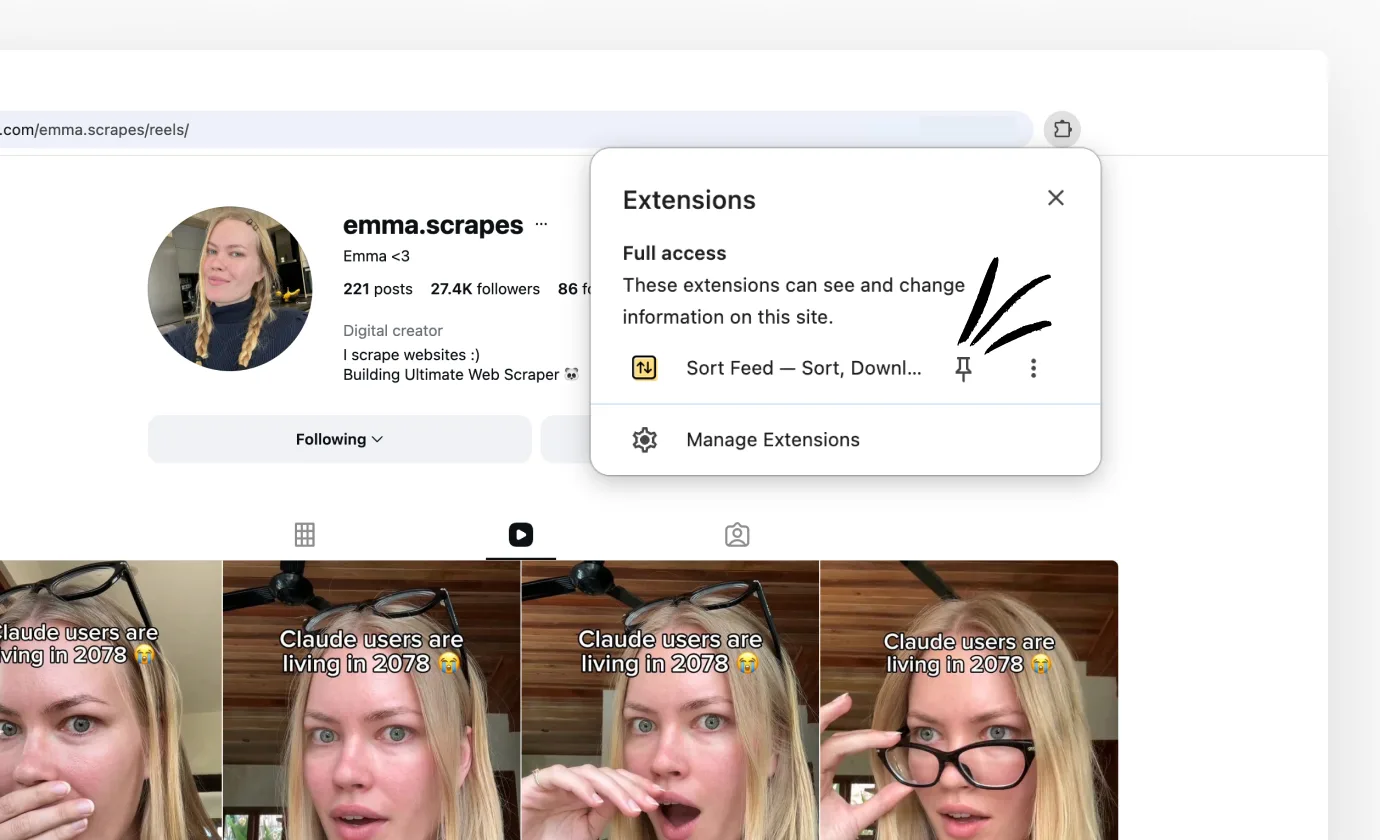
Click the puzzle-piece icon at the top right of your browser, find Sort Feed in the list, and click the pin next to it. The icon then sits in your toolbar permanently.
This is worth doing straight away. Every sort starts by clicking that icon, so an unpinned Sort Feed costs you two extra clicks each time.
3. Refresh any tabs you already had open
Sort Feed loads along with a page, so tabs that were already open when you installed it don't have it yet. Refresh them once and they're fine. New tabs need nothing.
Check it's working
Open any creator's profile on Instagram and click the Sort Feed icon. You should see a panel with two parts: Filters, for how much of the profile to look at, and Sort by, for how to rank it. The tag in the top-right corner says Free or Pro.
If you see a Choose a feed list instead, the tab you're on isn't a page Sort Feed can sort, such as a home feed or a settings page. Pick a platform from that list and it will take you somewhere it can work, or check What works where.
Once you have the panel open on a profile, Your first sort takes it from there.
Turn on Pro
If you've bought Pro, unlocking it takes a few seconds and happens inside the extension. If you haven't, Plans & billing covers what it adds.
1. Open Sort Feed and click Sign in
Click the icon in your toolbar, then Sign in at the bottom of the panel.
2. Use the email you paid with
Sign in with the exact email address on your checkout receipt. Pro unlocks instantly, and there's no code to wait for.
3. Check the tag
Open Sort Feed again. The tag in the top-right corner should now say Pro, and the locked options in each dropdown will be available.
Your licence follows your Sort Feed account rather than one computer, so you can sign in on a second machine the same way.
Staying up to date
Chrome updates extensions on its own in the background, so you don't need to reinstall anything to get new features. To pull an update immediately, open chrome://extensions, turn on Developer mode, and click Update.
That same page shows the version you're running, which is the first thing worth checking if something behaves differently than the docs describe.
If it isn't working
- Nothing happens when you click a sort. Refresh the page and try again. This is almost always a tab that was open before Sort Feed was installed or updated.
- The panel shows Choose a feed. You're on a page Sort Feed can't sort, so open a profile, a search, or a saved collection.
- The page looks empty. Make sure you're signed in to the platform in that tab and can see the posts yourself. Sort Feed only sorts what the page will show you.
- Still stuck. Troubleshooting covers the specific cases, and the Discord and email links at the bottom of this nav both reach a human.